
Custom File Metadata
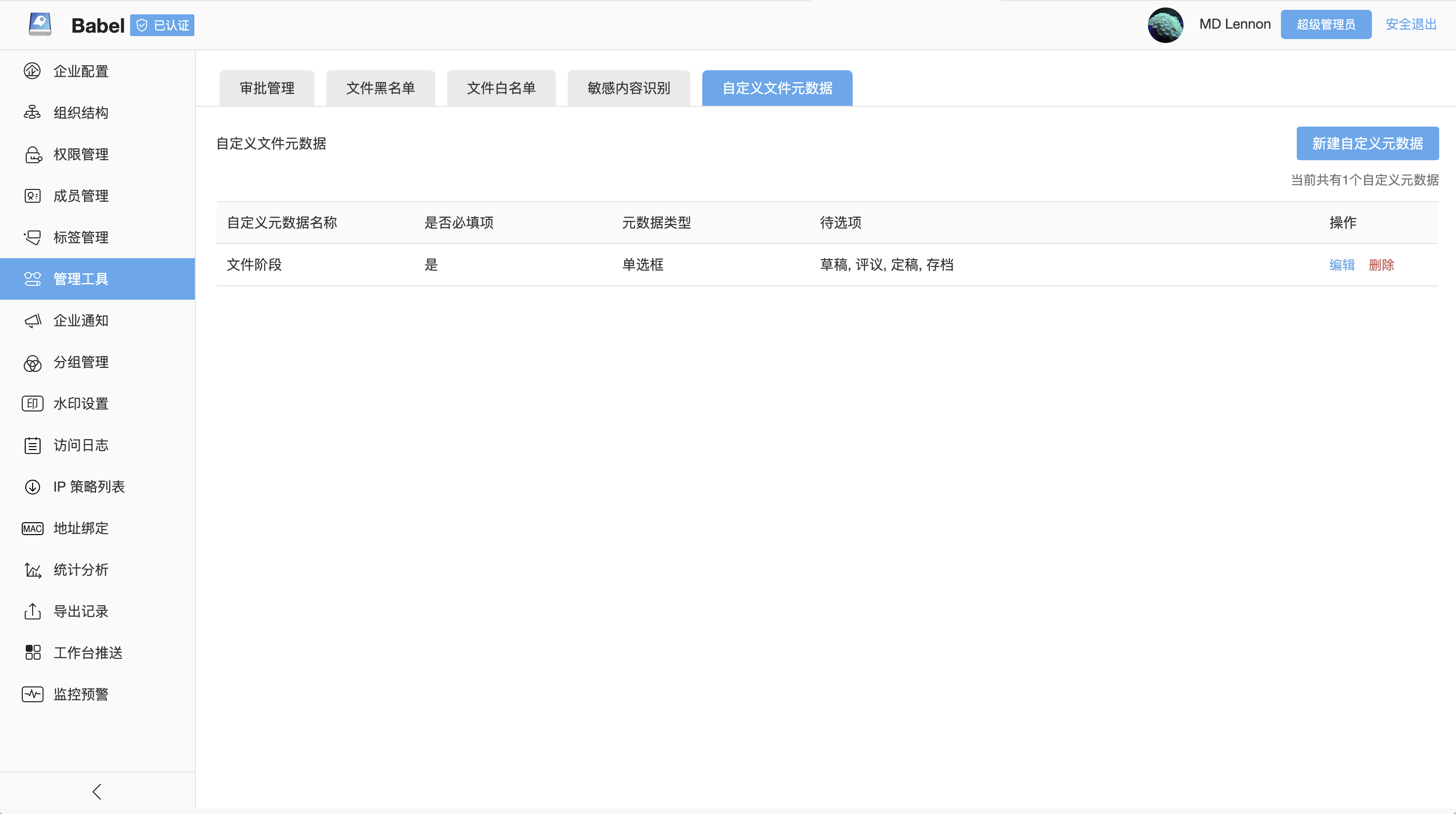
Custom File Metadata adds consistent, structured business fields to files. Administrators define field names, required status, field type and available values in the Enterprise Console. Users then assign values to files and use them in file details, list indicators and search filters.
This is useful for information such as document stage, publication status, contract type, confidentiality level and business ownership that cannot be expressed reliably by file names and folders alone.
Problems It Solves
| Problem | Metadata-Based Approach |
|---|---|
| Inconsistent naming | Record business state through shared fields and controlled values |
| Files distributed across folders | Search across folders by the same metadata condition |
| Publication or archive state is unclear | Display the current state directly in file details |
| Critical attributes are omitted | Mark important fields as required |
| Tags do not enforce a fixed vocabulary | Use administrator-defined fields and option sets |
Define Metadata Fields
In Management Tools > Custom File Metadata, administrators can review existing fields, required status, type and candidate values, then create, edit or delete fields.
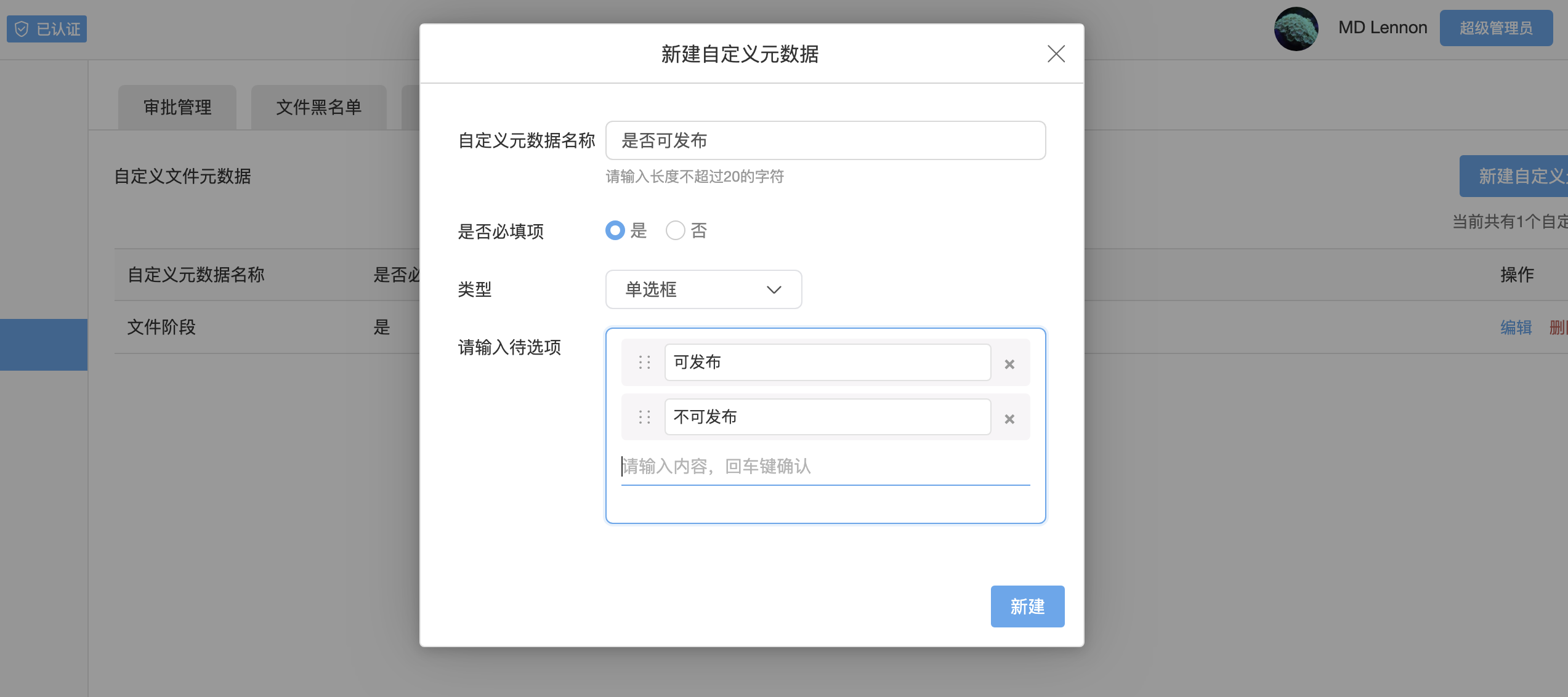
When creating a field, configure:
- Field name: the business meaning, such as Document Stage or Publishable.
- Required: whether users must provide the field when setting metadata.
- Field type: choose a text, numeric, date or selection field according to the business data.
- Options: controlled values for selection fields; options can be reordered or removed.
Available Data Types
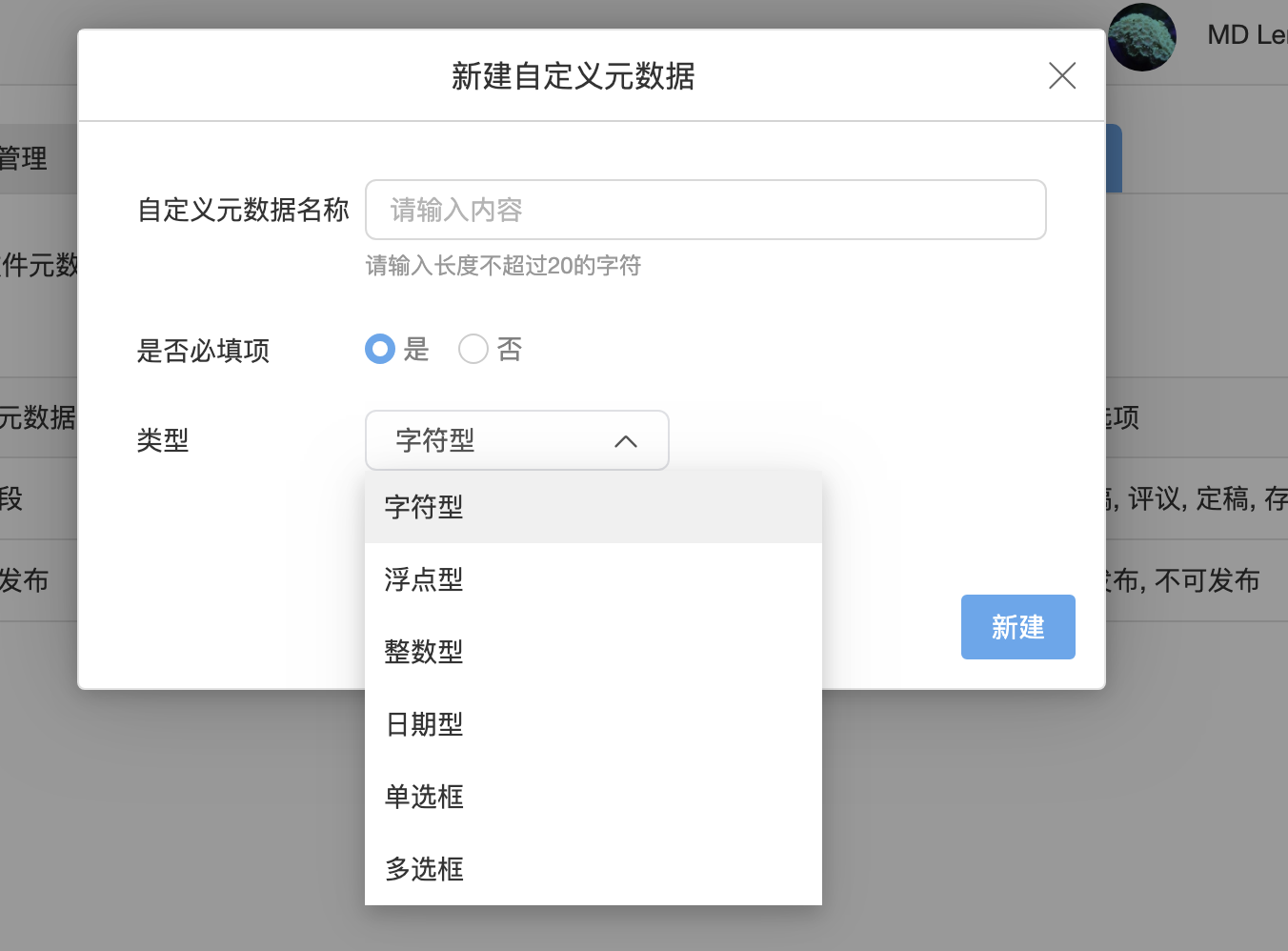
The current version provides six custom metadata types. The selected type controls how users enter a value. Single-choice and multiple-choice fields also require administrators to maintain the available options.
| Data Type | Input Method | Typical Uses |
|---|---|---|
| Text | Enter text or business identifiers containing letters and numbers | Contract number, customer name, project code and description |
| Floating point | Enter a decimal number | Contract amount, tax rate, weight and dimensions |
| Integer | Enter a whole number | Copy count, page count, year and retention period |
| Date | Select or enter a date | Signing, effective, expiry and archive dates |
| Single choice | Select one administrator-defined option | Document stage, publication status and confidentiality level |
| Multiple choice | Select one or more administrator-defined options | Applicable departments, business categories and usage scope |
Scroll horizontally to view all columns
Because a field type becomes part of the enterprise classification standard, administrators should decide in advance whether decimal values are needed, whether multiple selections are valid and whether values must come from a controlled option list.
Field Design Guidance
- Use short, unambiguous names and avoid duplicate fields with nearly identical meanings.
- Keep options mutually exclusive, understandable and stable over time.
- Make only genuinely critical information required.
- Before changing or deleting a field, check whether existing files use it and plan how historical values will be handled.
- Pilot a field in one project or document type before adopting it as an enterprise-wide standard.
Assign Metadata To A File
- Select a file and open its details panel.
- Expand Custom Metadata and choose Edit.
- Search for or select the fields to complete.
- Enter or select each value; an asterisk identifies required fields.
- Confirm to save.
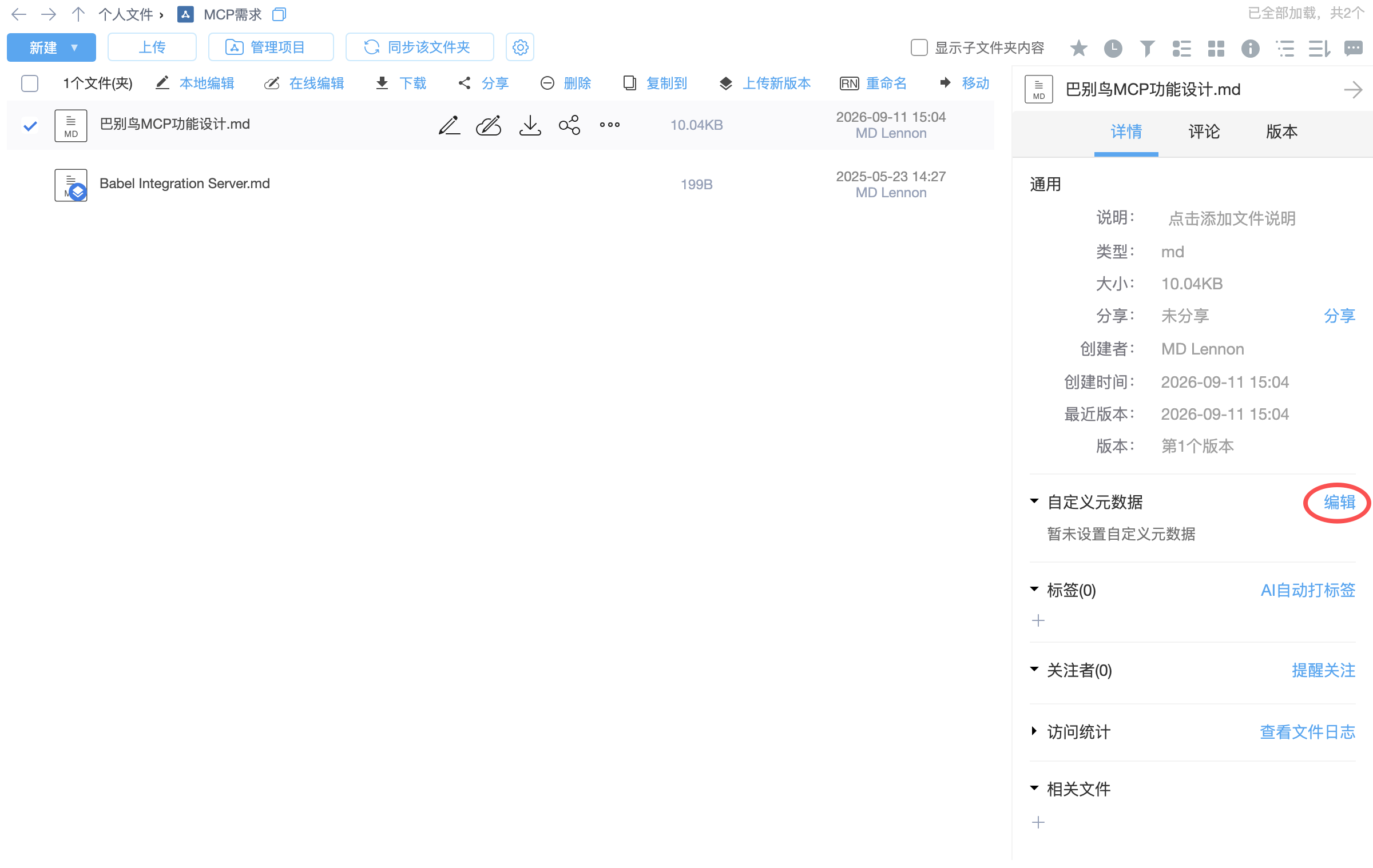
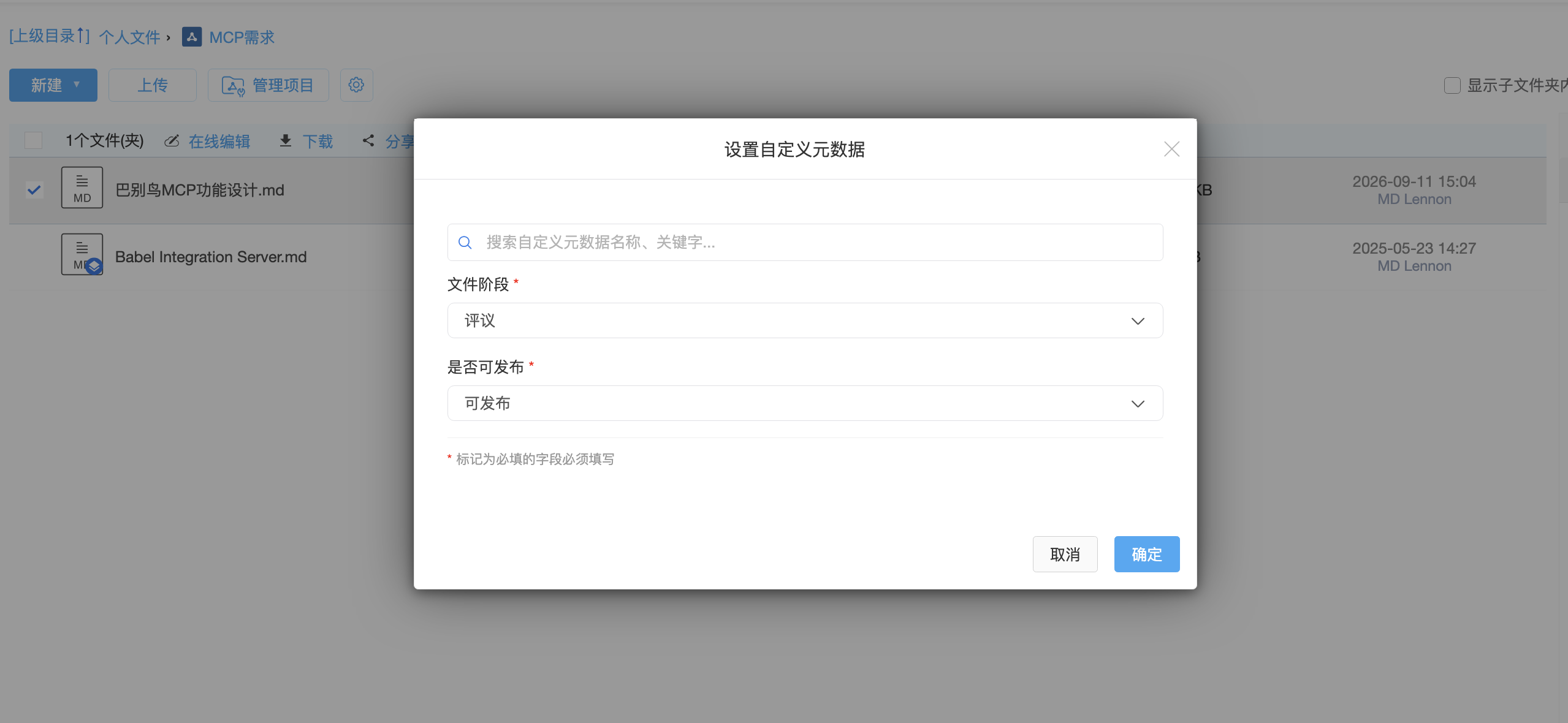
After saving, fields and values appear in the Custom Metadata section for quick review.

Search And Filter By Metadata
Custom metadata can be used as a dedicated search condition. Switch the search area to Search Custom Metadata Only, select a field, choose its value and confirm the filter.

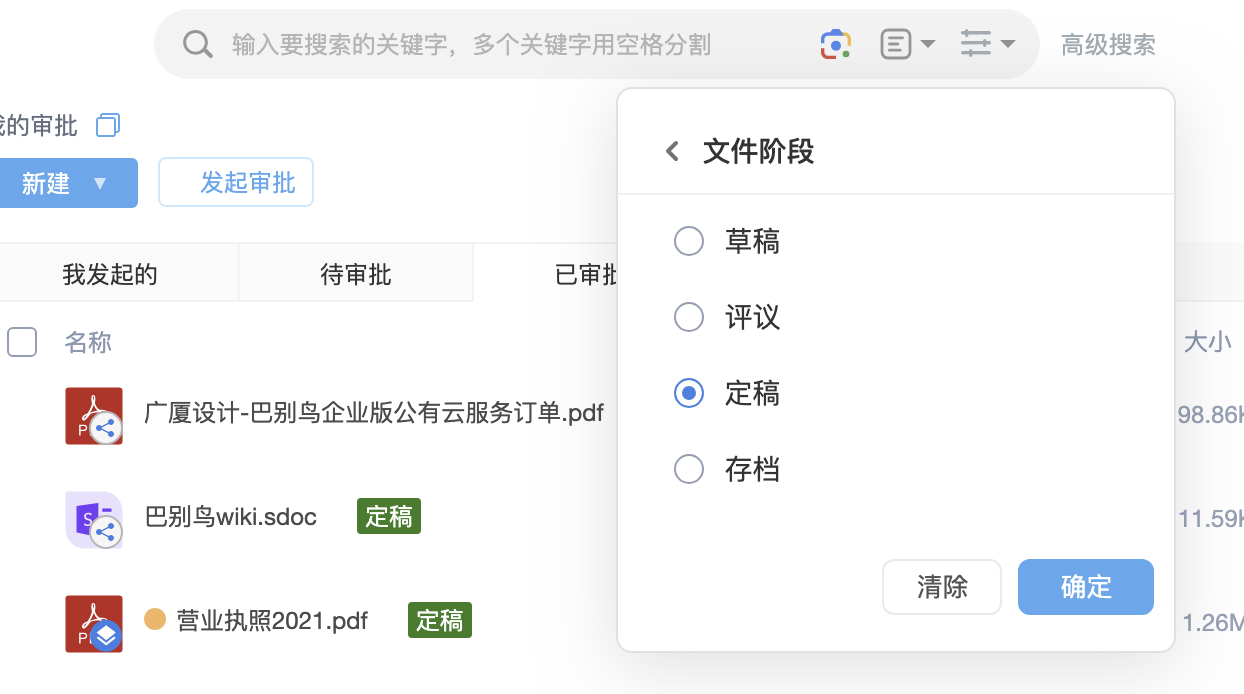
Typical searches include:
- Find all deliverables where Document Stage equals Final.
- Find restricted files where Publishable equals No.
- Filter across folders by contract type, project phase or document status.
- Combine metadata with keywords, file type, time and uploader conditions.
Search results still follow existing file permissions. Metadata filtering never expands a user's access scope.
Metadata, Tags And Image Metadata
| Capability | Source | Structure | Best Use |
|---|---|---|---|
| Custom file metadata | Defined by administrators and assigned by users | Shared fields and controlled options; can be required | Business stage, status, classification and compliance attributes |
| Enterprise/user tags | Added by administrators or users | Flexible and often multi-value | Topics, projects, customers and ad hoc grouping |
| Image metadata | Read automatically from images | Technical capture and file properties | Shooting time, dimensions, camera model and resolution |
Scroll horizontally to view all columns
The three can work together: custom metadata provides business consistency, tags add flexible meaning, and image metadata describes technical file properties.