
Managed Backup
Important employee files can be scattered across desktops, document folders and different drives. BabelBird Managed Backup lets administrators configure a central policy so that Windows clients automatically find and upload files with selected extensions while the relevant account is logged in.
Typical uses include office-document backup, contract and design-work retention, and employee handover. This is an upload-only backup mode: deleting a local file does not delete its uploaded cloud backup. Enterprise backup folders are managed by the enterprise; ordinary employees cannot delete enterprise-retained files themselves.
Available only in private deployments, with Windows clients only. The module must be enabled and the Windows client version must support it; this feature is not available on the public cloud. It is separate from user-created synchronization tasks. Ordinary synchronization support on macOS or Linux does not imply support for Managed Backup on those platforms.
Core Rules
| Rule | Description |
|---|---|
| Centrally administered | Administrators configure file scope, types, cloud destination and accounts; employees cannot independently modify, pause or remove the policy |
| Include selected extensions | Back up only selected types such as .docx, .xlsx, .pdf and .dwg; the selection is not an exclusion list |
| Scan the configured scope | Scan fixed local drives or specified folders according to the policy and upload only matching files |
| Upload-only retention | Upload new or modified matching files without propagating local deletion to the cloud |
| Create folders as needed | Preserve required parent folders for matching files; do not create empty directory trees with no matches |
| Follow the account | Apply the signed-in account's policy on supported Windows clients, including other computers where that account logs in |
| Separate devices | Keep each computer's files in its own device folder to prevent collisions between identical names and local paths |
| Optional logout restriction | Administrators can prevent user logout on backup computers; without that option, logging out stops that account's local backup session |
Only successfully uploaded files count as backed up. Files not yet scanned, still uploading or blocked by permission or network failures must not be treated as existing cloud copies.
Create and Publish a Policy
- Open Enterprise Console > Managed Backup > Backup policies and click New policy.
- Name the policy and choose the enterprise cloud backup folder.
- Select file extensions and the fixed-drive or folder scope. Configure available file-size and upload-bandwidth settings as needed.
- Select accounts, departments or groups. For a department, check whether subdepartments are included and confirm the resulting account scope.
- Check client usage, current signed-in devices, client versions and accounts without a client. Enable the option to prevent logout on backup computers if required.
- Review destination folders, file types and account coverage; resolve overlap with other active policies.
- Save a draft or publish. Drafts do not execute. After publishing, check each client's policy acknowledgment and upload results.
Publication is not proof that every computer has finished backing up. Check policy publication, client application, and scan/upload completion separately. Changes and deactivation also require device feedback, particularly for offline computers.
File Types: An Inclusion Allowlist
Selecting .docx, .xlsx and .pdf backs up those formats within the scan scope. Unselected types such as .mp4 and .exe are not uploaded. Extension matching is case-insensitive, so .PDF and .pdf are treated as the same type.
| Local event | Backup behavior |
|---|---|
| Create a matching file | Create the required folders and upload |
| Modify a backed-up matching file | Upload the new content and retain records through the available versioning capability |
| Delete a file or folder | Keep uploaded cloud backups; do not issue corresponding cloud deletions |
| Move or rename locally | Keep the original cloud backup; back up at the new path if it still matches the type and scope |
| Create an unselected file type | Do not upload it or create empty cloud folders for it |
Extensions select backup candidates; they do not inspect content or provide antivirus protection. Path scope, read permissions and system-folder protection must still be checked. Do not confuse this allowlist with an ordinary synchronization blacklist.
Account Sessions and Multiple Devices
Policies belong to accounts. Devices identify the source, execution status and cloud folder, not a permanently bound user.
- Account A logs in on an office computer: the client executes A's policy.
- A also logs in on a laptop: the laptop independently executes A's policy into another device folder.
- A logs out on the office computer: A's backup stops there, without affecting the valid laptop session.
- B then logs in on that office computer: the client uses B's policy and destination, not A's queue or file ownership.
Accounts without client usage can be assigned a policy in advance and remain awaiting client connection. They are not effective devices. Account counts and device counts are separate; one successful device does not mean all of an account's computers have completed backup.
Preventing Logout
The optional logout restriction is available to standard enterprise backup policies as well as the optional personal-file destination:
| Setting | Behavior |
|---|---|
| Disabled | Users can log out normally; that account's backup stops on that computer |
| Enabled | After sign-in and policy application, normal logout and account switching are restricted until an administrator removes the restriction |
This does not authorize collection without a valid session. Authentication expiry, account deactivation or forced sign-out must still stop the affected session. Preventing logout is not protection against shutdown, uninstall or a local administrator terminating processes. Stronger runtime controls require enterprise endpoint management.
Cloud Folder Structure
Enterprise backups use account > device > drive > original path, even when an account currently uses only one computer.
Enterprise backup folder/
  Alex (account identifier)/
    Office PC (device identifier)/
      C drive/Users/alex/Documents/Contract.pdf
      D drive/Projects/Quotation.xlsx
    Laptop (device identifier)/
      C drive/Users/alex/Documents/Contract.pdf
Drive letters become folders without colons, such as the Chinese UI's C盘 and D盘. Identical names and paths on different computers remain separate files with independent version records. Stable account and device identifiers distinguish duplicate display names; renaming must not change historical ownership.
Monitor Execution and Find Backups
| Page | Purpose |
|---|---|
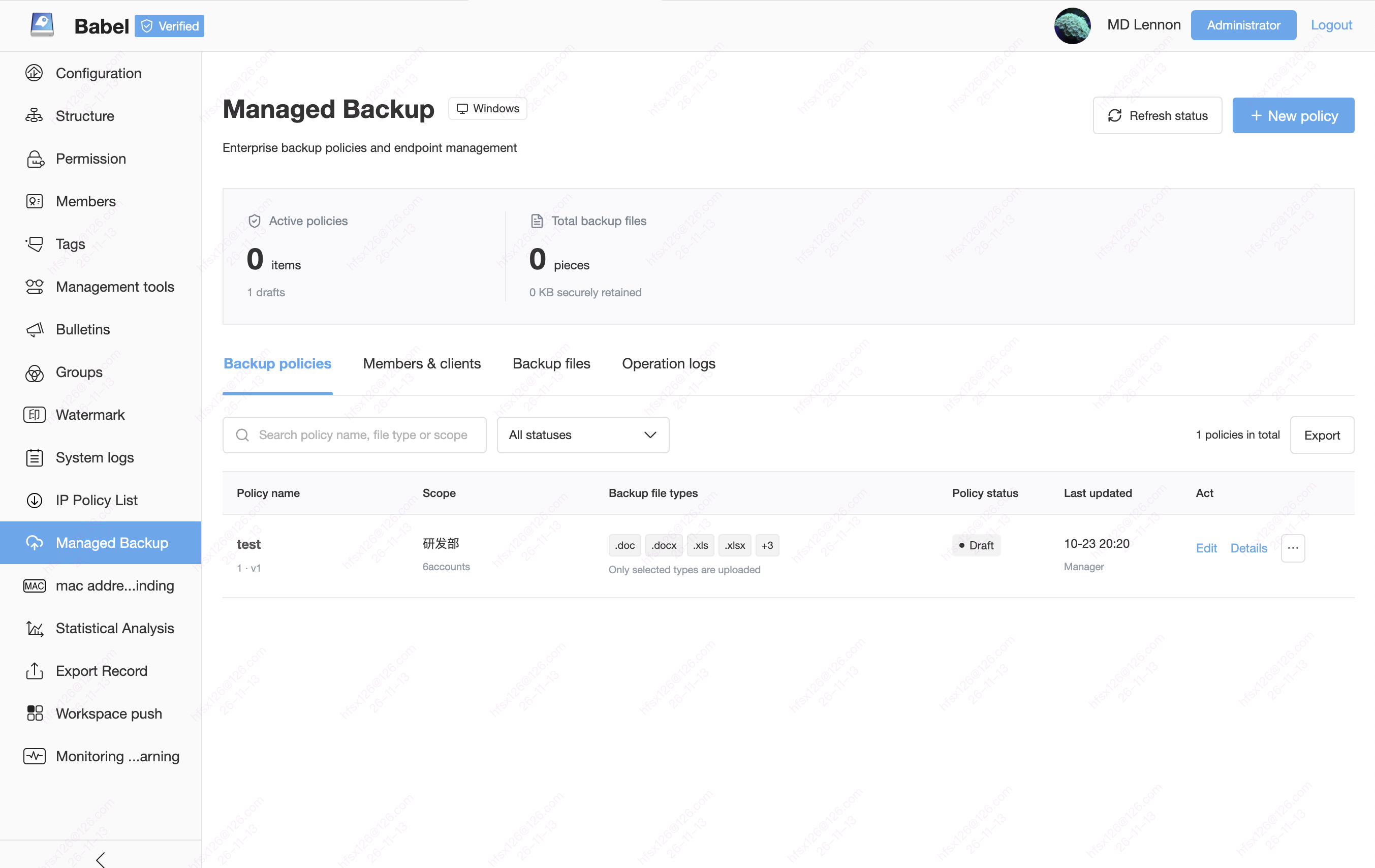
| Backup policies | Search policy names, scope, file types and status; create, edit, publish or deactivate policies |
| Members & clients | Associate accounts with client usage and inspect multiple devices, no-client accounts, signed-out sessions and online/offline status |
| Backup files | Locate files by account and device; check original paths, cloud paths and versions, and perform authorized recovery operations |
| Operation logs | Review policy configuration, publication, deactivation and related administration |
Distinguish the following conditions rather than relying on a total count:
- No client usage: no recorded client use; install and sign in. This is not an offline device.
- Signed out or not signed in: historical usage exists but there is no current valid account session, so backup does not run.
- Offline: the latest state is unavailable; this does not prove all files are backed up.
- Pending, in progress or failed: respectively awaiting policy acknowledgment, still scanning/uploading, or containing failures.
- Last backup successful: check the timestamp, failures and individual files; this does not cover future file changes.
Enterprise Retention and Personal Files
Standard enterprise backup provides enterprise-managed retention. Ordinary employees cannot delete, move or overwrite retained originals. Employee departure, account deactivation, policy deactivation and local deletion do not automatically remove uploaded enterprise backups. Authorized administrators can locate them by account, device and original path.
Backup to Personal Files is a separate optional module. If enabled in the deployment, administrators can select the user's Personal Files as the destination. Backups go to the current signed-in account's personal space and are separated by device. The user has ordinary personal-file permissions, including editing, moving and deleting files. Therefore:
- Neither destination propagates local deletion.
- Personal-file mode does not prevent deliberate cloud deletion by the user and is not a substitute for employee-nondeletable enterprise retention.
- Choose the enterprise backup folder when protecting retained copies from employee deletion is required.
FAQ
Is Managed Backup available on the public cloud?
No. Managed Backup is available only in private deployments and requires a supported Windows client. Ordinary synchronization and the agent project cloud-sync plugin are separate features; their availability does not imply public-cloud support for Managed Backup.
How is Managed Backup different from ordinary synchronization?
Users create and manage ordinary sync tasks according to their permissions, selecting directions and blacklists. Managed Backup uses centrally assigned policies, an extension inclusion allowlist and upload-only retention. Employees cannot independently modify, pause or remove a policy. This feature targets Windows; ordinary sync platform support and deletion rules must not be assumed to apply.
Are selected file types backed up or excluded?
They are backed up. Selecting only .pdf uploads only PDF files within scope. Other extensions are not uploaded merely because they are absent from the list. It is an inclusion allowlist, not an exclusion blacklist.
Does a cloud backup remain after an employee deletes the local file?
Successfully uploaded enterprise backups remain. Local deletion does not cause cloud deletion. Content not yet uploaded may have no cloud copy, so check completion. Deleting a cloud file in the optional Personal Files mode is a different action and does not have enterprise-retention protection.
Can two computers using one account overwrite identical paths?
Not merely because the paths match. Both computers run the account's policy, but backups are isolated by account, device, drive and original path. Select the correct device before browsing or recovering files.
Can an account without a client receive a policy?
Yes, as a pending assignment. Actual backups start only after sign-in on a supported Windows client, policy application and successful upload. An assigned policy alone is not execution.
Does backup continue after client logout?
No. Backup follows the valid account session and stops locally on logout. Administrators may restrict normal logout, but the task must still stop when its session becomes invalid.
Before Use
- Define required business records and extensions, inform employees of the scope, and avoid unnecessary collection.
- Check Windows client compatibility, sign-in, folder read permissions, connectivity and cloud capacity.
- Test selected types uploading, unselected types staying local, and cloud retention after local deletion.
- Verify same-account device isolation and logout behavior with the restriction both enabled and disabled.
- Review failures and last-success timestamps regularly and test sample recovery; do not accept policy publication alone as completion.