
File Classification
BabelBird uses file classifications to apply confidentiality requirements to visibility, sharing, approval and file operations. An enterprise can set a security policy for an entire department or assign a security level to an individual file or folder.
Setting a department security policy automatically applies the corresponding classification to its existing files and to subsequent uploads. For example, the Confidential department policy gives Finance files the Restricted classification, without requiring each new upload to be classified separately.
The Security level field in file details offers Open, Internal, Restricted and Confidential. These are security controls within BabelBird, not merely display labels. They work alongside roles, file access controls and sharing settings.
Department Policies and File Levels
Department policy names and file-level names are different. The English file-details panel calls the highest file level Confidential, while the department policy table calls that level Top-secret. Both correspond to the Chinese file level 绝密. By contrast, the department policy named Confidential corresponds to 保密 and assigns files the Restricted level.
| Department policy | Corresponding file level in file details | Applies to |
|---|---|---|
| Open (公开) | Open (公开) | Existing department files and subsequent uploads |
| Ordinary (普通) | Internal (内部) | Existing department files and subsequent uploads |
| Confidential (保密) | Restricted (限制) | Existing department files and subsequent uploads |
| Top-secret (绝密) | Confidential (绝密); shown as Top-secret in the policy table | Existing department files and subsequent uploads |
Scroll horizontally to view all columns
Open does not mean publicly accessible on the internet. This classification does not grant access to everyone or automatically create a share link. Department roles, file permissions, sharing scope and enterprise external-sharing controls still apply.
Set a Department Policy
- A user with the security officer role opens Enterprise Console > Organization and selects the department. Department information can also be viewed from department management in Enterprise Files.
- Locate Department file security strategy or Enterprise file security strategy. Use the explanation link to review the rules.
- Open Edit and set the department policy.
- Save the policy. Existing files receive the corresponding classification, and subsequent uploads use it too.
- Check visibility, sharing approval and download behavior with member accounts that have different roles.
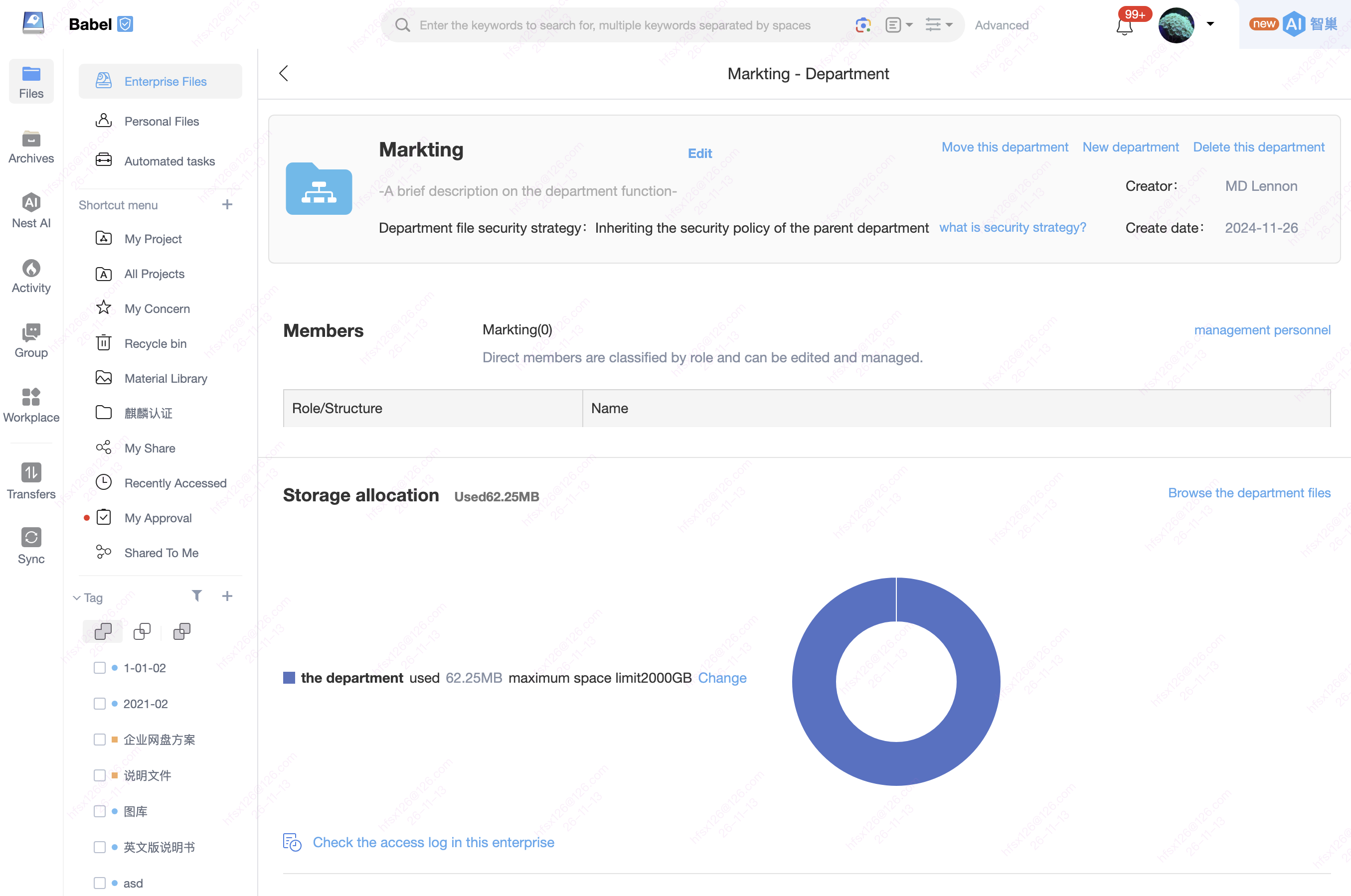
Only the security officer can set the overall enterprise or department security policy. The policy table also uses the label Security Keeper for this role. Department-management or approval authority alone does not imply authority to configure the overall policy.
Department Approval Rules
| Department policy | Default file level | Members initiate sharing | Members join shares or projects | Members send files | Approver |
|---|---|---|---|---|---|
| Top-secret | Confidential / Top-secret | Approval required | Approval required | Approval required | Security officer or super administrator |
| Confidential | Restricted | Approval required | No approval required | No approval required | Supervisor |
| Ordinary | Internal | Approval required when sharing outside the department | No approval required | No approval required | Supervisor |
| Open | Open | No approval required | No approval required | No approval required | None |
Scroll horizontally to view all columns
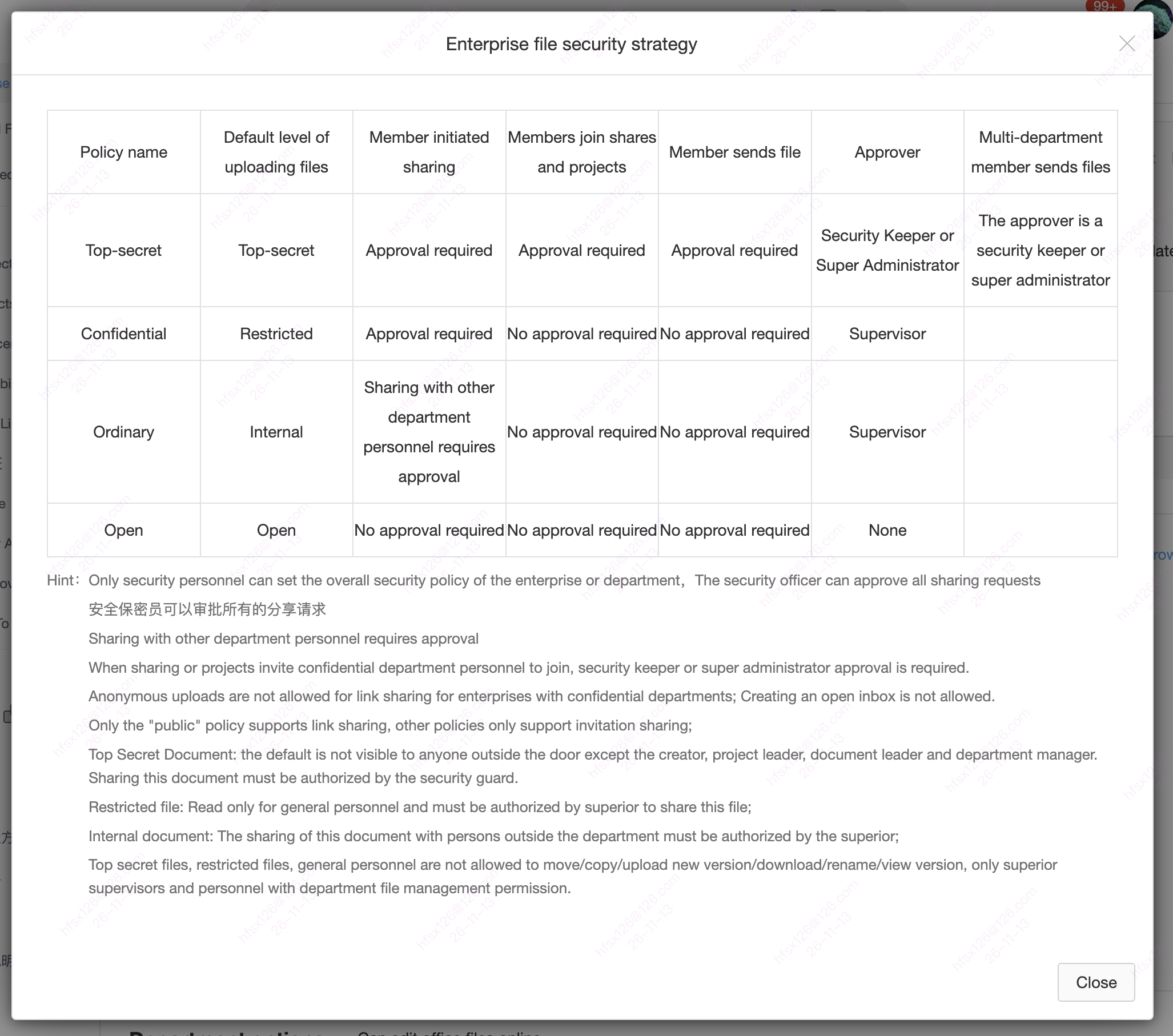
Additional rules also apply:
- A security officer can approve all sharing requests.
- Inviting people from a Confidential department to a share or project requires approval from a security officer or super administrator. Check recipient-side restrictions as well as the initiator's policy.
- Only departments with the Open policy support link sharing; other department policies support invitation sharing only. Enterprise external-sharing restrictions still apply to Open departments.
- If an enterprise has a Confidential department, link shares cannot allow anonymous uploads, and open file collection boxes cannot be created.
Set a File or Folder Classification
- Select the file or folder in the file list and open its details panel.
- Locate Security level and select Open, Internal, Restricted or Confidential.
- Complete the setting and check the displayed level. Changes must be made by someone with the appropriate classification-management permission.
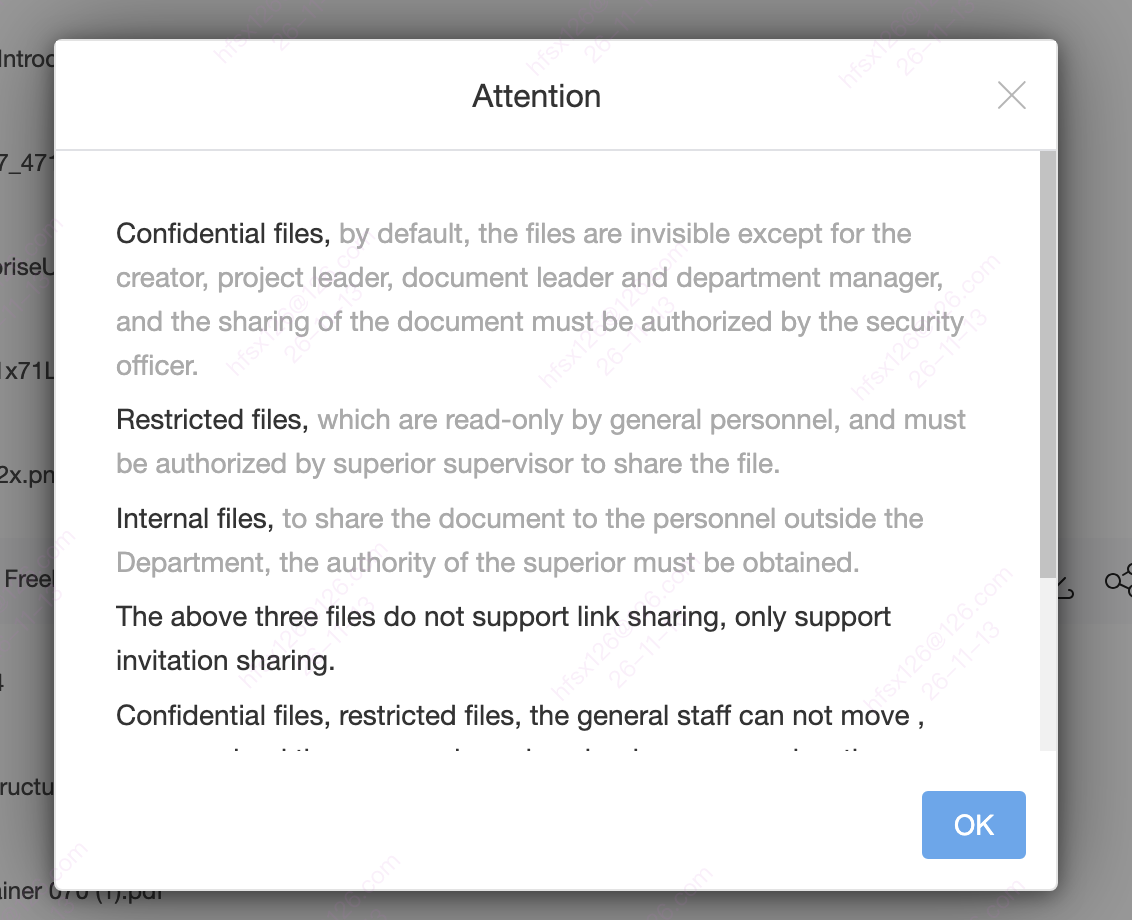
- Click more to review visibility, sharing requirements and operation restrictions.
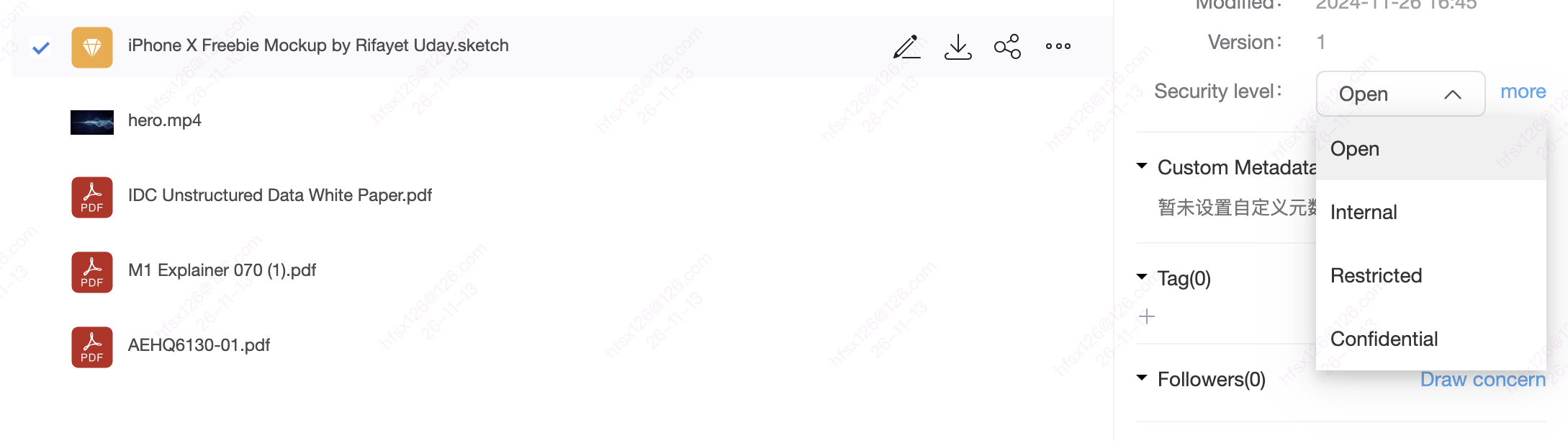
A department policy establishes department-wide requirements; file or folder classification manages a particular object. Check the object's displayed level and available operations. Changing one file's level does not change the entire department policy.
Restrictions by File Level
| File level in file details | Visibility and operations | Sharing requirements |
|---|---|---|
| Open | Existing roles and file access controls apply | Invitation or link sharing is available where permissions and enterprise policies allow |
| Internal | Existing file permissions govern access and operations | Sharing outside the department requires supervisor authorization; invitation sharing only |
| Restricted | Ordinary members have read-only access and the operation restrictions below | Sharing requires supervisor authorization; invitation sharing only |
| Confidential (Top-secret in the policy table) | By default, visible only to the creator, project owner, file owner and department manager, not other department members | Sharing requires security officer authorization; invitation sharing only |
Scroll horizontally to view all columns
For Confidential (Top-secret) and Restricted files, ordinary members cannot:
- Move or copy the file.
- Upload a new version or download the file.
- Rename the file or view versions.
Supervisors and people with department file-management permission can perform these operations. Operation rights do not remove sharing-approval requirements. Visibility still depends on the person's role and file access permissions.
Examples
| Scenario | Configuration | Expected behavior |
|---|---|---|
| Routine internal department documents | Set the department to Ordinary | Existing and new files are Internal; sharing outside the department requires approval, and link sharing is unavailable |
| Finance contracts and settlement records | Set the department to Confidential | Existing and new files are Restricted; ordinary members have read-only access without download, and sharing requires approval |
| Sensitive documents handled by a small set of owners | Set the file level to Confidential | Default visibility is limited; sharing requires security officer authorization |
| Product materials intended for external distribution | Use Open policy and classification where external sharing is permitted | Authorized people enable sharing and configure permissions, password and expiry as needed; files do not become public automatically |
Scroll horizontally to view all columns
FAQ
Does a department policy also change existing files?
Yes. Existing department files automatically receive the corresponding classification, and subsequent uploads use it too. For example, the Confidential department policy maps to Restricted files; it is not limited to new uploads.
Why does Confidential appear in both department policies and file levels?
Read the label in context. The Confidential department policy assigns Restricted files. The Confidential option in file details is the highest file level, corresponding to Top-secret in the policy table. Ordinary department policy maps to Internal files. The mapping table above distinguishes these labels.
Why can I view a file but not download or copy it?
Viewing and download or copy permissions are different. For Restricted and Confidential (Top-secret) files, ordinary members cannot move, copy, upload a new version, download, rename or view versions. A supervisor or someone with department file-management permission should handle these operations according to enterprise requirements.
Can Internal, Restricted or Confidential files use link sharing?
No. These three file levels support invitation sharing only, subject to approval requirements. Departments with Ordinary, Confidential or Top-secret policies also do not support link sharing.
Does setting a file to Open grant outsiders access?
No. Open is a classification, not an access grant. External recipients must use an allowed sharing method and remain subject to sharing permissions, passwords, expiry and enterprise external-sharing controls.
Does classification replace file permissions or watermarks?
No. Classification specifies security requirements; roles and file permissions determine access and operations; watermarks provide confidentiality notices and traceability markers. Use these controls together rather than relying on a label alone.