
Account, Devices and Mail Settings
Open the avatar menu at the top right and choose Settings. Personal settings apply to the current account. Enterprise roles, security policies and module switches belong in the Enterprise Console.
Profile and Display Preferences
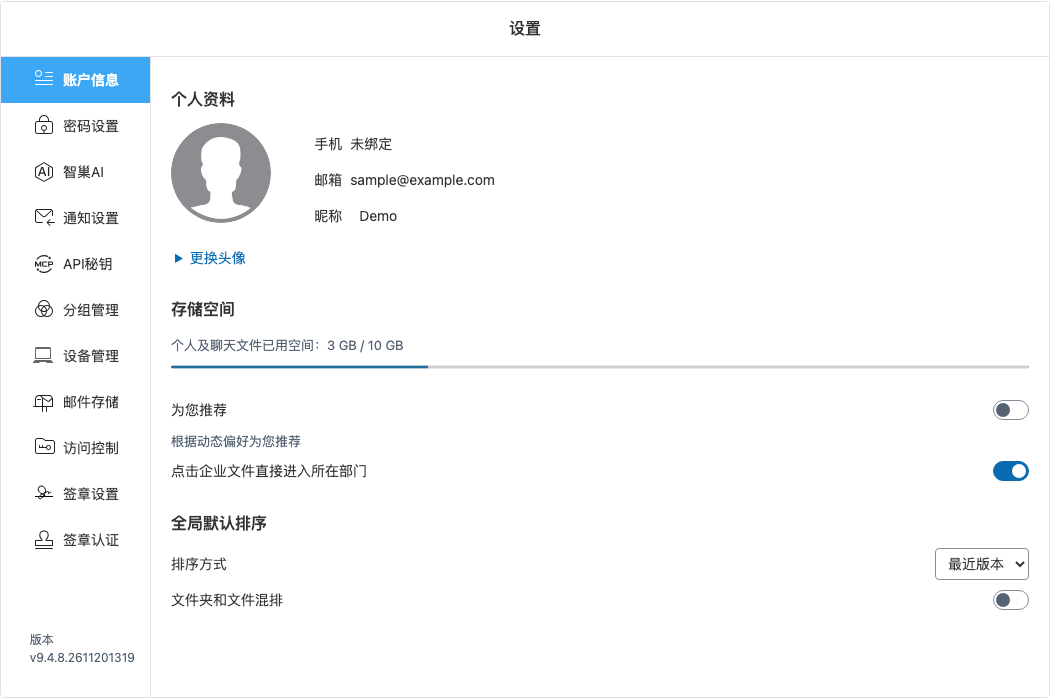
- Open Account information and check your nickname, avatar, phone, email and visible storage usage.
- Save changes and complete any required identity verification. Do not use another person's phone or email for your identity.
- For file lists, choose a global default order such as name, size or latest version, and whether files and folders are sorted together.
- Return to a list to verify the result. A folder's existing sorting preference may differ from the global default; adjust that folder when necessary.
Display preferences, such as recommendations or expansion of the enterprise entry, do not change department membership or file permissions.
Configure Email Notifications
- Open Notification settings and check whether the account has a bound email address. Use the binding entry when prompted. Enterprise mail-notification configuration also affects this area.
- Enable email notifications, then inspect File upload, File comments and Share member management individually. Do not assume enabling the switch selects all three; check File upload in particular.
- Switches and checkboxes submit changes directly, without a separate overall Save button. Clearing every mail type turns off the notification switch and disables type selection; enable it again when needed.
- Reopen the page to verify the saved state. Email notifications and the mailbox connection under Mail storage are separate settings; enabling one does not establish that the other is configured successfully.
Inspect Signed-in Devices
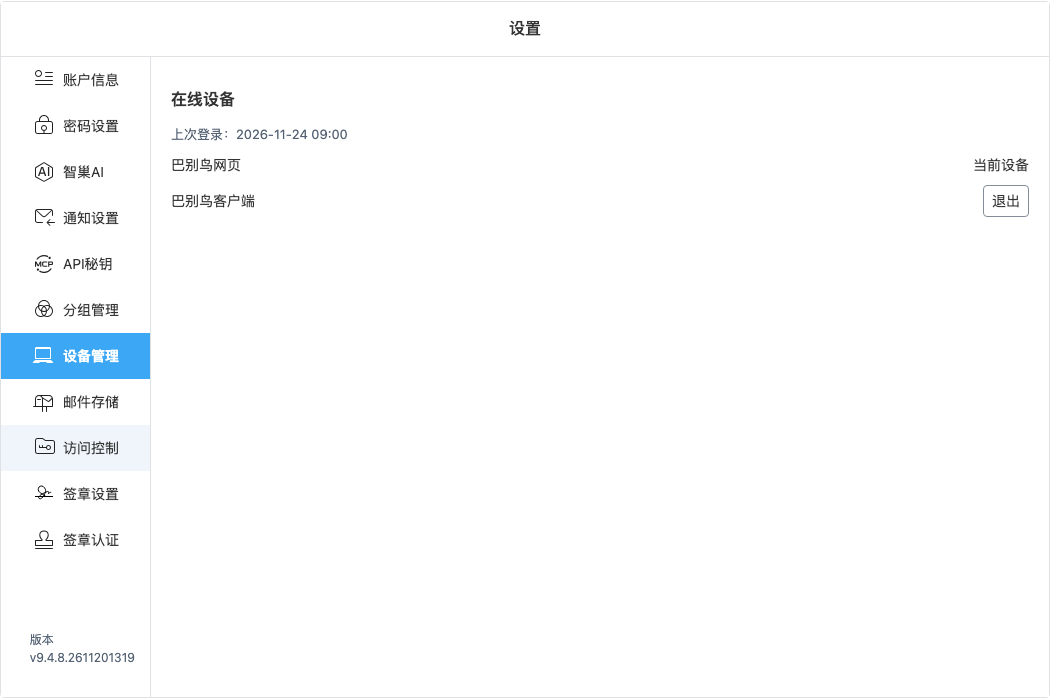
- Open Device management and inspect client type, device information, the current-device marker and available login or online records.
- Before treating a record as unfamiliar, check whether it is another computer, browser or client you use. A similar device name alone is insufficient identification.
- To end a session, verify its identity, use the row's sign-out action if available and refresh to check the result. Contact an administrator if unavailable or ineffective.
- Signing out of the current session requires signing in again. Session management does not delete cloud files or uninstall a client.
Enterprise backup policies are managed under Managed Backup. Policies follow the account, and an optional sign-out prohibition cannot be bypassed through ordinary device management. See Managed Backup.
The row's sign-out action opens a confirmation dialog. After success feedback, that session row is removed. On error, recheck the session instead of treating it as signed out. The list deduplicates session IDs and omits records without a recognizable client name, so it is not an inventory of all physical enterprise devices.
Mail Storage
Mail storage provides the corresponding mail-connection settings. Ask enterprise IT to confirm mailbox authorization, server and port, network requirements and whether this capability is enabled.
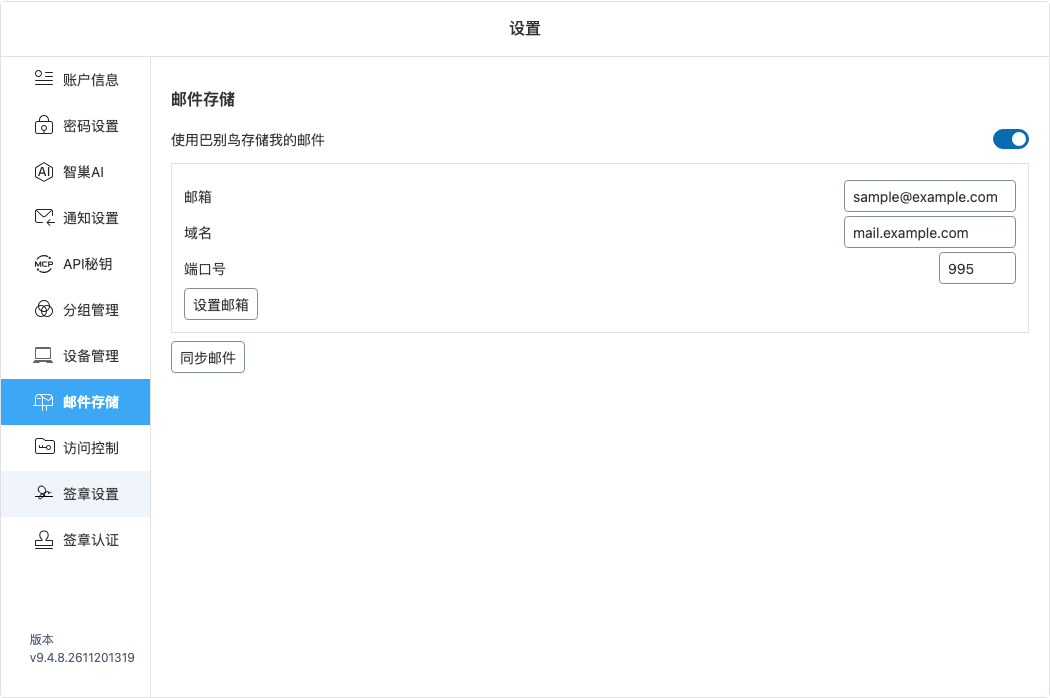
- Open Mail storage and check its enabled state and mailbox configuration entry.
- Enter the settings required for your enterprise mailbox. Example ports are not universal; keep passwords and authorization codes private.
- Save as prompted and use an available mail-sync action when needed.
- Inspect feedback and the resulting mail or files. For connection failures, check the address, authorization, network and enterprise settings first.
Confirm the protocol, synchronization scope, destination, storage accounting and deletion behavior for your deployment. This entry alone does not mean all mail has been archived or permanently backed up.
Edit the Mail Connection and Sync Manually
After enabling Mail storage, choose Edit and enter the email address, server address, numeric port and password. Leaving the email field triggers an attempt to retrieve server and port settings; verify these against IT's configuration instead of accepting the populated values automatically. For QQ mail, the password field changes to an authorization-code prompt; follow that prompt.
Wait for save-success feedback and check the displayed email, server and port. On failure, correct the reported issue and retry. Cancel returns to the saved display values. When using Sync mail, inspect the syncing indicator, success/failure feedback and actual results. Turning off Mail storage hides the connection settings and manual sync entry; this alone does not establish that stored mail was deleted.
Other Settings
| Entry | Purpose and boundary | Further instructions |
|---|---|---|
| Password settings | Change the account password with verification; enterprise SSO accounts follow enterprise identity procedures | Third-party SSO |
| Nest AI | Inspect available AI configuration or quota; displayed quota is not a fixed plan commitment | Nest AI |
| Notification settings | Configure available reminders; disabling a reminder does not cancel a review task or revoke access | Activity and Notifications |
| API keys | Create an app, choose scope, copy its API Key and connect an agent | BabelBird MCP |
| Group management | Manage permitted collaboration groups, not the department hierarchy | Group Management |
| Access control | Inspect account-related file-permission information; not enterprise IP policy | Permissions |
| Signature settings / verification | Manage available signatures and relevant verification; configuration does not authorize stamping every document | Electronic Signatures |
Scroll horizontally to view all columns
FAQ
Why is a setting missing or read-only?
Check the account, enterprise, deployment version, licensed modules, administrator configuration and your permissions. Do not bypass enterprise restrictions through another entry.
For example, personal Group management, Mail storage and Access control entries require an enterprise version and a non-guest enterprise account; the AI entry also depends on deployment support. Permissions affect file-list visibility as well as controls: a missing entry or empty list alone does not prove that the feature or data does not exist. Existing screenshots show the official interface, not a guarantee that every identity sees every item.
Does an online device mean its files are backed up?
No. Login state differs from upload progress and managed-backup execution. Inspect file counts, timestamps and failures in the relevant transfer or backup view.
Does changing notification settings cancel pending approvals?
No. Preferences control reminders, not the business task. Continue checking and handling tasks in My Approval.