
Workspace Navigation and Shortcuts
Use the sidebar to select a file space or a frequently used list. The folder tree, breadcrumb path and original-folder action help locate a file. A shortcut neither copies a file nor changes its permissions.
Choose a File Space
| Entry | Purpose | What to check |
|---|---|---|
| Enterprise Files | Enterprise and department documents | Open the department, then its folders; check membership and permissions if a department is missing |
| Personal Files | Your own files | Availability depends on enterprise configuration; this is not a shared department folder |
| My Projects / All Projects | Project collaboration | Visibility depends on participation and access; All Projects does not grant access to every project |
| Shared To Me | Items shared with you | A share is not a separate copy; share and source-file permissions still apply |
| My Concern / Recently Accessed | Followed and recently used files | Current access is checked when opening an item; last access is not the modification time |
Scroll horizontally to view all columns
- Select a space, then open the department, project or folder.
- Open the folder tree when you need to expand a hierarchy. Selecting a folder changes the file list.
- Use the breadcrumb above the list to return to an ancestor. Check the full path before working with similarly named files.
- In followed or recent lists, use the original-folder action to return to the containing folder before reorganizing files.
Customize Shortcuts
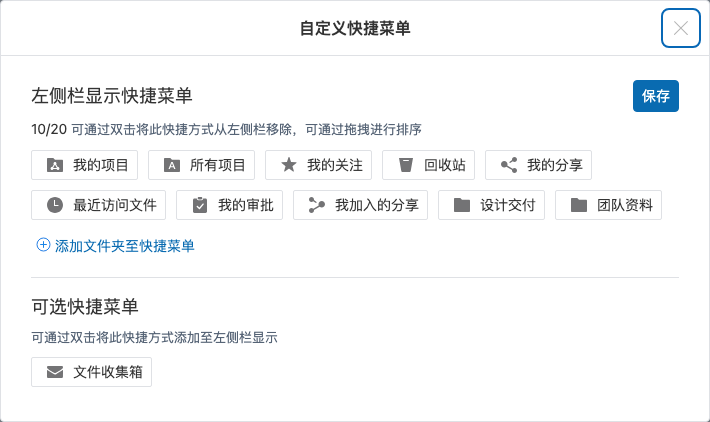
- Open settings beside the Shortcut menu heading in the file sidebar.
- Double-click an available entry to add it; double-click a displayed entry to remove its shortcut.
- Drag displayed entries to reorder them. The menu can show up to 20 entries.
- To pin a working folder, choose the add-folder-to-shortcuts action, locate the folder in the picker and confirm.
- Save, then check that the sidebar entry opens the expected location. Canceling the picker cancels that selection; it does not delete files.
Removing a shortcut does not delete its source folder. Adding one does not grant access to other people. Recheck the target if the folder has moved, been deleted or had its permissions changed.
Followed and Recent Files
- Follow important files to collect them under My Concern. Unfollowing removes the list entry, not the file.
- Use Recently Accessed to find previously opened documents, then return to their original folder when needed.
- Use the reminder action in the Followers area of file details to notify colleagues. A reminder does not grant access.
FAQ
Does adding a shortcut let colleagues access the folder?
No. A shortcut is only an entry point. Configure collaboration through department, project, invitation-sharing or file-access permissions. See Permissions.
Does a missing recent file mean it was deleted?
Not necessarily. Check the account, enterprise, original location and permissions, then use Search or the Recycle Bin.